
Inviting additional users to Banking
Ready-to-Launch Banking supports multi-user access for business accounts. Once a user completes the banking application and is approved, they become the account Owner and can invite additional users — each with a specific role that controls their level of access.
To support user invitations, you need to implement an API endpoint that Unit calls to retrieve the list of eligible users from your platform. See API Endpoint Requirements for details.
Multi-user access is only available for business customers.
Team Roles & Permissions
Each user is assigned a role that determines what they can see and do within the banking experience.
| Role | Created via | Scope | Can manage team | Can view all accounts | Can create payments | Can manage cards |
|---|---|---|---|---|---|---|
| Owner | Application form | Full account | Yes | Yes | Yes | Yes |
| Admin | Invitation | Full account | Yes (ReadOnly & Cardholder only) | Yes | Yes | Yes |
| ReadOnly | Invitation | Full account | No | Yes | No | No |
| Cardholder | Invitation | Single card only | No | No | No | Owned card only |
- Owner — Automatically assigned to the user who submits the application form. Has full, unrestricted access to accounts, payments, cards, and team management. There is one Owner per account. The Owner role cannot be changed or reassigned.
- Admin — Invited user with the same visibility and functionality as the Owner. Can invite and remove ReadOnly and Cardholder users. A maximum of 5 Admins can be added per account.
- ReadOnly — View-only access to the full banking experience (accounts, balances, transactions, cards). Cannot send payments, manage cards, or invite team members.
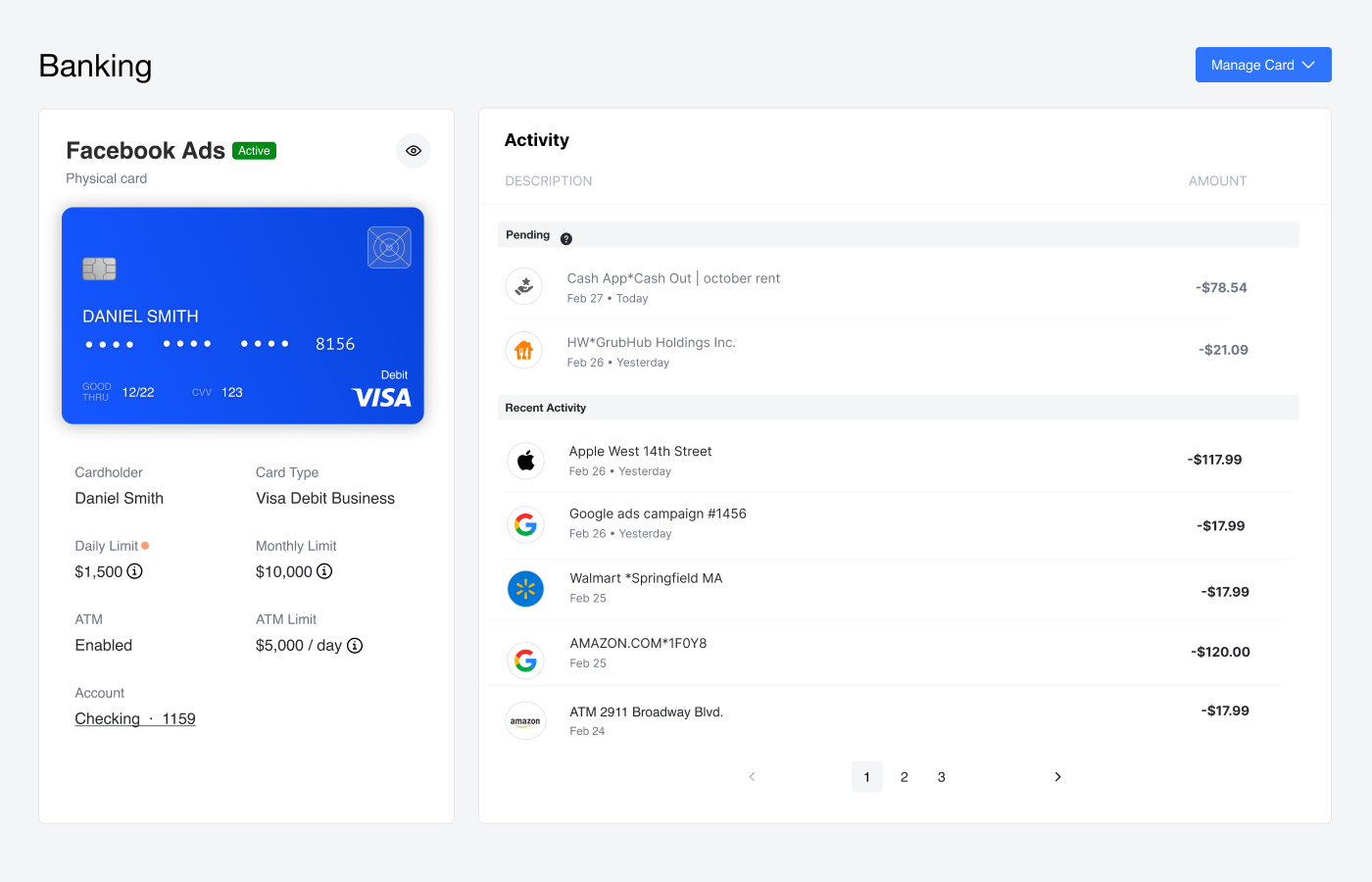
- Cardholder — Access limited to a single debit card created for them. Can view card details and transactions, and freeze/unfreeze their card. Cannot see accounts, other cards, or other users’ activity. When invited, the Cardholder receives a Cardholder Invite Email with a link to activate their card.
Owner, Admin & ReadOnly View
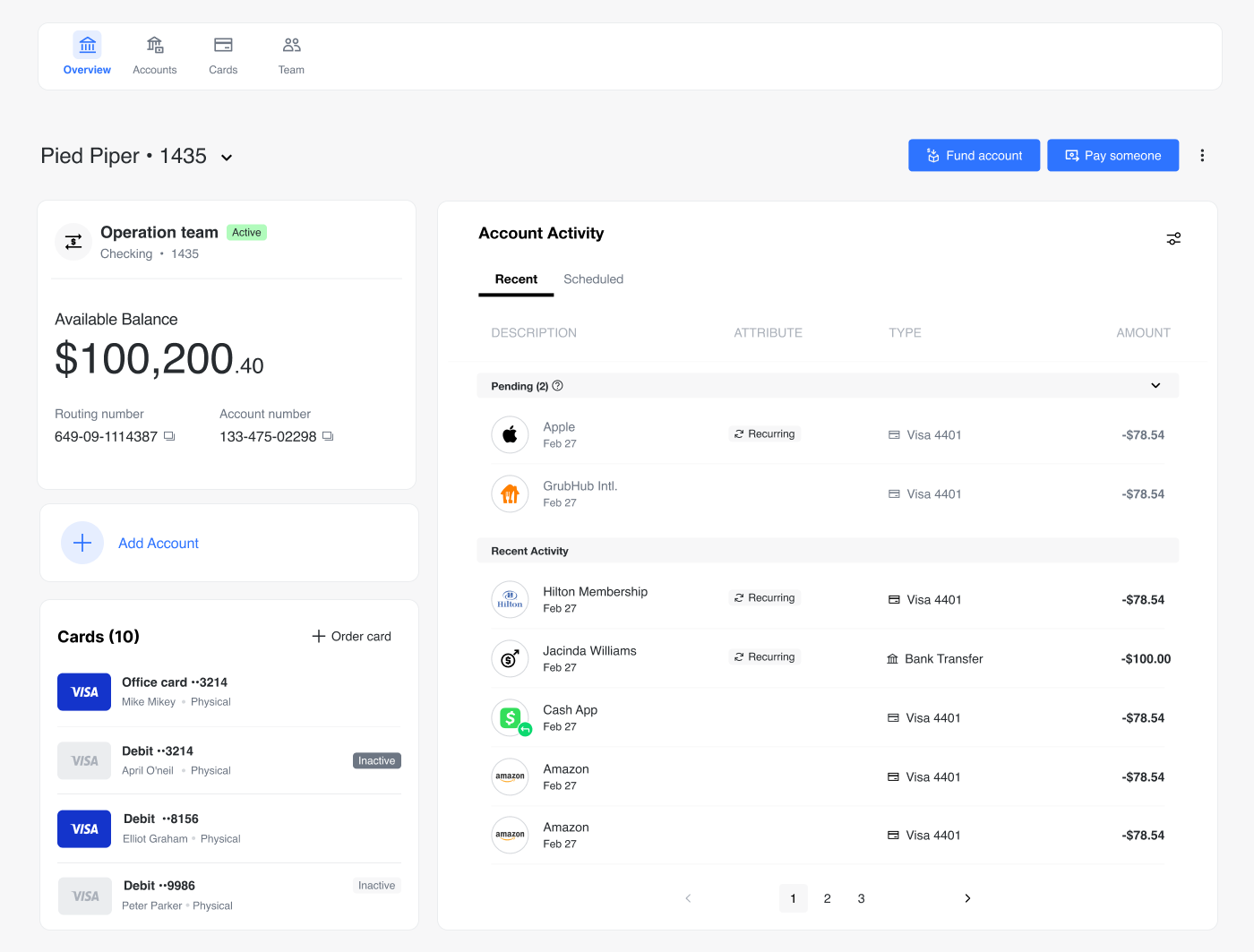
The Owner, Admin, and ReadOnly roles share the same full-account view. The difference is in which actions are available — buttons for payments, card management, and team invitations are hidden based on the user’s role permissions.
Cardholder View
The Cardholder view is a limited experience scoped to a single debit card. Cardholders can only see their own card details and transactions.
How Roles Are Assigned
Owner
The Owner role is automatically assigned to the user who submits the business application form. No additional configuration is required.
Admin, ReadOnly & Cardholder
These roles are assigned to users who are invited into an existing account. Roles can be managed in two ways:
Via the White-Label App — The Owner or an Admin can invite users and assign roles through the Team page. See Invite User Flow below.
Via the JWT token — Include a unitRole attribute in the user’s JWT token. Unit validates the token on login and updates the role accordingly. If no role is provided in the token, Unit retains the last assigned role.
{
  "sub": "user_67890",
  "exp": 1735689600,
  "iss": "your-platform",
  "unitRole": "Admin"
}
Only Admin, ReadOnly, and Cardholder can be set via the JWT token. The Owner role is assigned automatically during onboarding and cannot be changed. If an unrecognized role is provided, the request will fail.
Invite User Flow
The Team page allows Owners and Admins to invite new members to the banking account. The invite flow differs depending on the role being assigned.
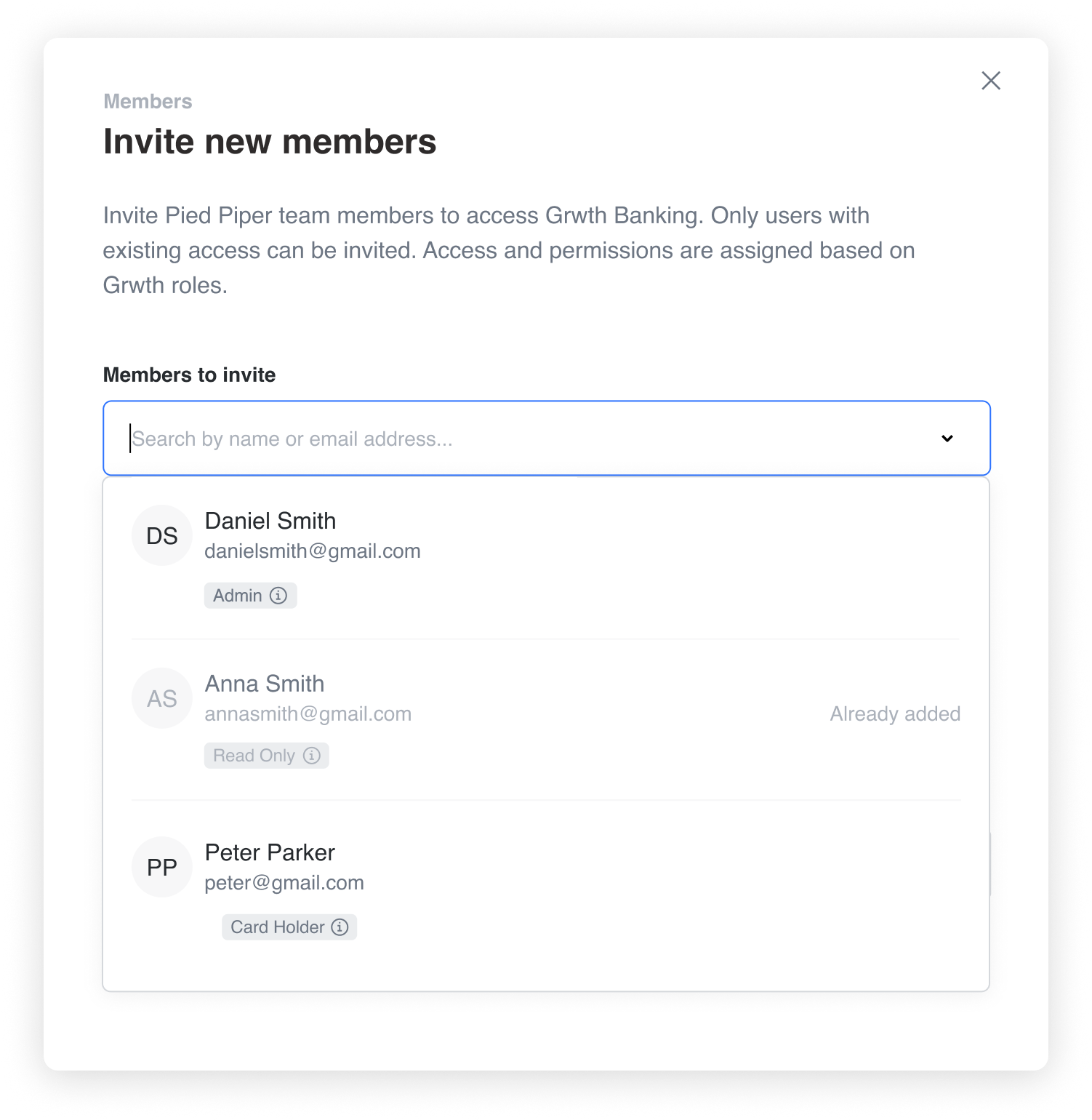
Admins can only invite users that are returned by the partner’s API endpoint. Invited users must have access to the partner’s site in order to use the banking platform.
Who Can Invite
| Actor Role | Can Invite |
|---|---|
| Owner | Admin, ReadOnly, Cardholder |
| Admin | ReadOnly, Cardholder |
| ReadOnly | — |
| Cardholder | — |
ReadOnly and Cardholder users do not see the Invite button on the Team page.
A maximum of 5 Admin users can be added to a single account.
Inviting an Admin or ReadOnly User
- Click "+ Invite" on the Team page.
- Search and select a user from the dropdown. Users who are already members appear disabled with an "Already added" label.
- Fill in any missing fields (shown conditionally):
- Role — only appears if the selected user doesn’t already have a role assigned.
- Phone number — only if the user has no phone on file.
- Click "Invite member" to send the invite.
- A success confirmation is shown. Click "Done" to return to the Team page.
Inviting a Cardholder
The Cardholder invite flow includes additional steps to configure the debit card that will be created for the user.
- Click "+ Invite" on the Team page.
- Search and select a user from the dropdown.
- Fill in any missing fields (shown conditionally):
- Role — if not already assigned.
- Phone number — if missing.
- Date of birth — required for Cardholders.
- Click "Continue" to proceed to card configuration.
- Configure the card:
- Card type — Virtual or Physical.
- Billed account — select from available deposit accounts.
- Card name (optional).
- Debit transaction limits — daily and/or monthly amounts (optional).
- ATM withdrawal limits — daily and/or monthly amounts (optional).
- At least one of debit transactions or ATM withdrawals must be enabled.
- Shipping address (physical cards only) — enter or edit the delivery address.
- Review — confirm the member details, role, and card configuration.
- Click "Invite member" to complete the invite.
The Cardholder and their card are created together in a single step. When the invite is complete, the Cardholder receives an invite email with a link to activate their card.
Validations
The following conditions may prevent an invite:
| Condition | Effect |
|---|---|
| User is already a team member | Disabled in the dropdown with "Already added" label |
| Actor cannot invite the target role | User disabled in the dropdown |
| 5 Admins already exist on the account | Admin users disabled in the dropdown |
| Required fields not filled (role, phone, date of birth for Cardholders) | Invite button disabled |
| No card type selected (Cardholder flow) | Cannot proceed past card configuration |
| Both debit and ATM transactions disabled (Cardholder flow) | Cannot proceed past card configuration |
| Missing shipping address for physical card (Cardholder flow) | Cannot proceed past card configuration |
API Endpoint Requirements
To enable team management, implement an API endpoint that returns the list of end users on your platform who are eligible for invitation. Unit calls this endpoint to populate the member selection dropdown when an Owner or Admin invites a new user.
After the endpoint has been implemented on your side, please contact Unit in order to configure it.
Request
Unit sends a GET request to your endpoint with the inviting user’s JWT token in the Authorization header:
curl -X GET 'https://yourdomain.com/unit/users' \
-H "Authorization: Bearer ${JWT Token}"
Response
Return a JSON array of end users associated with the customer resource created at Unit. Each entry must use the whiteLabelAppEndUser type and include the fields described below.
Response Fields
| Field | Type | Required | Description |
|---|---|---|---|
fullName | FullName | Yes | Full name of the end user. Displayed in the member selection dropdown. |
email | string | Yes | Email address of the end user. |
jwtSubject | string | Yes | Unique identifier for the end user (must match the sub claim in their JWT token). |
phone | Phone | No | Phone number of the end user. If omitted, the invite flow prompts the inviter to enter a phone number. |
unitRole | string | No | The pre-assigned role (Admin, ReadOnly, or Cardholder). If omitted, the invite flow shows a role selection dropdown so the inviter can choose a role. |
bankingPageURL | string | No | URL to the banking page on your website. Used in invite emails so the invited user can navigate to the app. |
dateOfBirth | string | No | Date of birth of the end user. If omitted and the user is being invited as a Cardholder, a date-of-birth input field is shown during the invite flow. |
When unitRole is omitted, the user bypasses role-based permission checks in the invite dropdown — they are always selectable, regardless of the inviter’s role. The inviter assigns the role manually during the invite flow.
Example Response
[
  {
    "data": {
      "type": "whiteLabelAppEndUser",
      "attributes": {
        "fullName": {
          "first": "Peter",
          "last": "Parker"
        },
        "email": "peter.parker@parker.com",
        "phone": {
          "countryCode": "1",
          "number": "2345678888"
        },
        "jwtSubject": "test",
        "unitRole": "Admin"
      }
    }
  },
  {
    "data": {
      "type": "whiteLabelAppEndUser",
      "attributes": {
        "fullName": {
          "first": "April",
          "last": "Oneil"
        },
        "email": "april.oneil@parker.com",
        "jwtSubject": "test2",
        "unitRole": "ReadOnly"
      }
    }
  }
]